How to Install Latest Sportzfy APK on FireStick
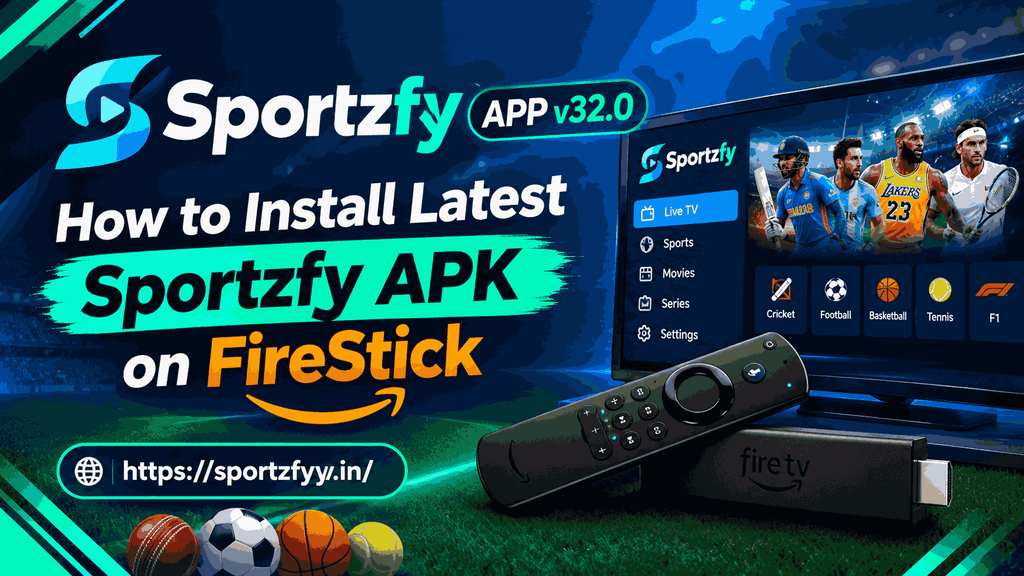
Amazon FireStick lets you stream movies, TV shows, and other online content directly on your television. If you want to explore Sportzfy APK on FireStick, you first need to check whether the app is compatible with your device and whether its installation file comes from a trustworthy source.
Sportzfy is associated with sports streaming and live TV channels. However, an Android APK may not work correctly on every Fire TV model. Therefore, follow the steps below carefully, and remember that installing an app does not guarantee that its channels or streams will be available.
What You Need Before Installing Sportzfy on FireStick
Before you begin, make sure you have:
- An Amazon FireStick or compatible Fire TV device.
- A stable internet connection.
- Enough available device storage.
- The APK file from a source you trust.
- A compatible downloader or file-transfer method, if needed.
Important: Sportzfy APK is not necessarily available through the Amazon Appstore. Sideloading an APK carries security risks, so verify the file before installing it and avoid modified versions from unknown sources.
Step 1: Check Whether Your FireStick Supports APKs
First, open Settings → My Fire TV → About and check your device model.
Older and many current Fire OS devices support Android APK installation, but some newer models use a different operating system and cannot install APKs
Step 2: Install the Downloader App

If Downloader is available for your device:
- Open Find or Search on the FireStick home screen.
- Search for Downloader.
- Select the app and choose Get or Download.
- Open Downloader after installation.
Only install the app from a trusted store listing. Availability may differ by device and region.
Step 3: Enable APK Installation
On compatible Fire OS models:
- Open Settings.
- Select My Fire TV.
- Open Developer Options.
- If Developer Options is missing, go to About, highlight the device name, and press the center button seven times.
- Return to Developer Options.
- Enable the installation permission for Downloader if your device provides it.
The menu can differ between software versions. If the permission is unavailable, do not attempt to bypass operating-system restrictions.
Step 4: Download the Sportzfy APK
Open Downloader and enter the complete HTTPS address of a verified APK download page. Download the file only if you trust its source and can verify its authenticity.
I cannot confirm that a particular Sportzfy APK file is genuine or safe. Avoid unknown shortened links, modified APKs, and download pages that demand unnecessary personal information.
Step 5: Install and Open Sportzfy
Once the APK finishes downloading:
- Select the downloaded file.
- Review the installation prompt.
- Select Install if you trust the file.
- Wait for the installation to finish.
- Open the app and check whether the remote controls work correctly.
If the app does not appear on the home screen, check Settings → Applications → Manage Installed Applications. Amazon documents this as a way to launch sideloaded apps.
Common Sportzfy FireStick Problems
| Problem | Possible solution |
|---|---|
| APK will not install | Check compatibility, storage, and file integrity. |
| Downloader cannot install the APK | Confirm that the device supports APKs and the file is a compatible package. |
| Sportzfy crashes | Check the Android version and app requirements. |
| Remote navigation does not work | The app may be designed primarily for touchscreens. |
| Video keeps buffering | Check your internet connection and try an authorized stream. |
| Unknown-app permission is missing | Check the device’s operating system and software updates. |
Frequently Asked Questions
Can I install Sportzfy on every FireStick?
No. Installation depends on the operating system and device compatibility. Some newer Fire TV models use Vega OS, which does not support Android APK files.
Is Downloader required to install Sportzfy?
No. Downloader is one option on compatible devices. ADB from a computer is another method, although it requires additional setup.
Can I watch live cricket after installing Sportzfy?
Only if the app works on your device and a suitable stream is available. Installing the app does not guarantee access to particular matches or channels.
Is sideloading Sportzfy safe?
Sideloading can expose your device to malicious or modified files. Verify the source, review permissions, and avoid installing APKs that trigger unexplained security warnings.
Final Thoughts
Installing Sportzfy APK on FireStick starts with checking device compatibility, installing a trusted downloader if available, and following the correct installation process for your Fire OS version.
Before proceeding, confirm that your device supports Android APKs. For reliable and secure sports viewing, use authorized streaming services whenever possible.